
Troubleshooting Landscape
Welcome to Wenke Landscape
Landscape-Ready Plants With Proven Excellence
Getting started: Ordering By Job Name
Getting Started
Order By Job Name
How to Order By Job Name
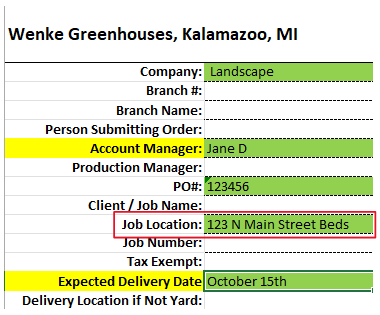
Unlike many competitors, WenkeSunbelt offers the option for landscape customers to order their product by job name. Ordering by job name lowers the amount of time required for material handling and distributing job material yourself. Label your order by adding in the "Job Location" on your availability, see below.
When you label each order with a unique job name, like “Maple Street Garden” or “Oakwood Plaza Bed #3″, it ensures your landscaping team knows exactly which property, project phase, or planting zone the materials or services are intended for.
Stay Organized, Save Time
A simple step like naming your job when submitting an order helps us deliver exactly what you expect—on budget, on schedule, and at the right location. It keeps your vision intact and makes our entire team more efficient.
Boost Confidence
Office staff, crew leaders, and suppliers are all aligned.
Product arrives sorted and ready for the job every time you label your job.
Increase Efficiency
Eliminate Mix Ups! No more confusion about which plants go where or which address a delivery is for.
Customers report 50% less time handling material per job.
Lowers Product Handling Time
With your product already sorted by job when it ships, your team will spend less time handling product leading to potential plant loss.
Higher Product Quality Control
Less hands moving plants, less chance of damage. Maintain your high quality product from arrival to install.
Streamline Billing & Record‑ Keeping
Each job maps directly to invoices and work orders.
Getting started: Availability & Codes
Understanding Availability & Codes
Reading Availability
- Our availability sheet shows what is currently growing and projected to be available — not everything listed is ready to ship immediately.
- Be sure to refer to the crop status to determine what is actually ready to ship now. Only items marked with R, A, or NR are considered ready to ship.
- It updates automatically every 4 hours.
Understanding Availability & Codes
Understanding Container Codes
Example of Availability Sheet:
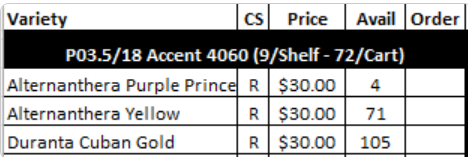
Each item in the availability sheet includes a container code. The first letter of the container code tells you what type of product it is:
- F = Flat
- P = Potted (e.g., 4″, 6″, Deco pots, etc.)
- H = Hanging Basket
For potted items, the code includes both the pot size and the number of pots per tray. Here’s how to read it:
- The number after the “P” refers to the pot size in inches
- The number after the “/” indicates how many pots are in each tray
P3.5/18 means you are ordering 3.5″ pots, and there are 18 pots per tray.
Getting started: How to Upload an order
How to Upload an Order
Directions for Submitting Orders
- Download the Availability Sheet
Start by downloading our most up-to-date availability spreadsheet. This file lists all the plant varieties currently growing, along with projected availability dates. - Enter Your Requested Quantities
On the second tab of the file, titled “Order Form”, enter the quantities you’d like to request for each item. Be sure to fill in the Job Name column if applicable to help keep your orders organized. - Review the Order Summary
The third tab, “Order Summary”, automatically totals your order by container size and gives you a quick overview. Use this tab to double-check your quantities before submitting. - Upload Your Completed Order
Once you’re satisfied with your order, return to our website and use the Order Upload form to submit your completed file. We’ll confirm your order once it’s been reviewed.
Tip: Do we have a tip? Do we want this to be more separated? More visually appealing?
Spring Ordering
The ideal time to start placing your Spring 2026 orders is December.
Submitting orders by the end of December helps us plan greenhouse space and ensures your preferred varieties are grown and reserved for you.
Fall Ordering
The best time to start placing your Fall 2026 orders is July.
Submitting your fall orders by the end of July gives us a much clearer picture of availability and locks in your selections before the rush.
Summer Ordering
The best time to start placing your Summer 2026 orders is January.
Submitting orders by the end of January secures your selections before production fills up during the peak season.
Getting started: Excel/Macro Troubleshooting
Landscape
Order Summary Tab Not Populating?
How to Fix It (Unblock the File)
- Close Excel if the order form is currently open.
- Locate the file on your computer (often in your Downloads folder).
- Right-click the file and select Properties.
- In the Properties window, look at the bottom for a checkbox labeled Unblock.
- Check the box, then click Apply and OK.
- Reopen the file in Excel — your Order Summary tab should now populate correctly.
If you don’t see the “Unblock” checkbox, try moving the file to your Documents folder and check again.
Still stuck? Contact us and we’ll help you get it working.